

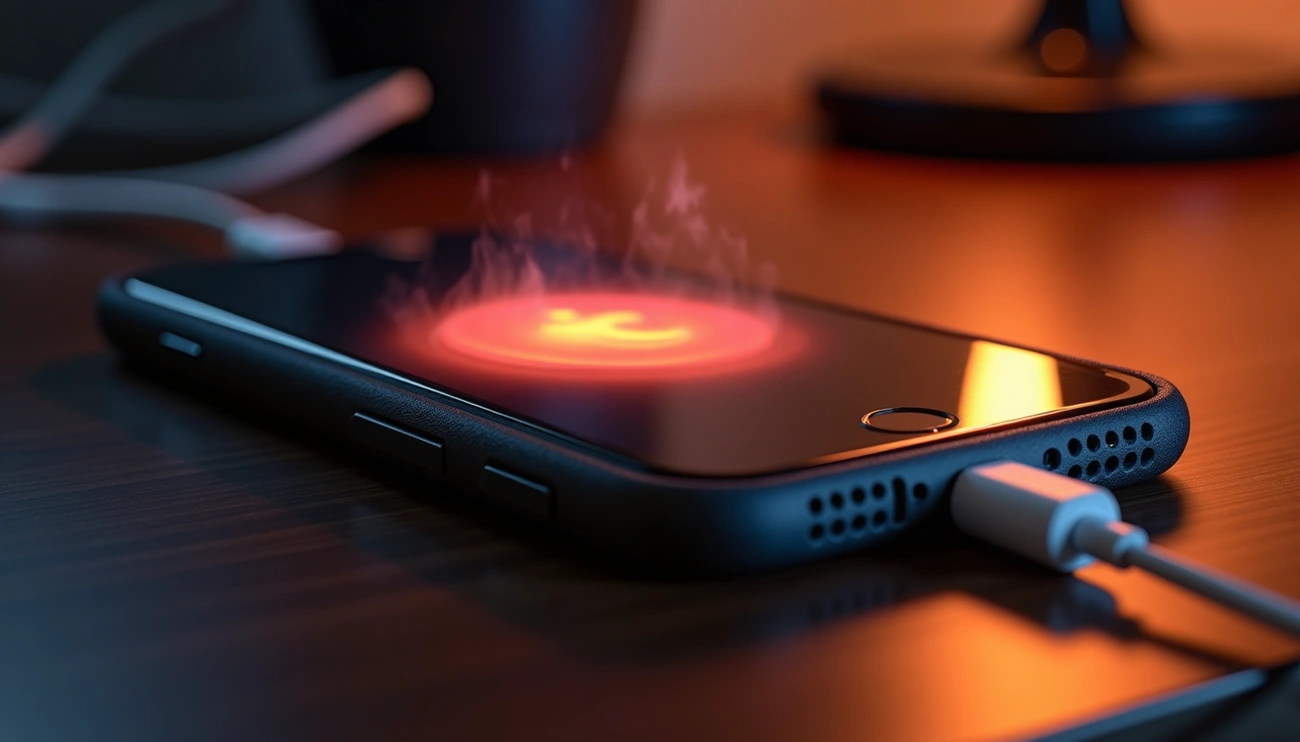
Is your iPhone overheating while charging? This common issue is more serious than you might think. When your device gets too hot to touch during charging, it’s not just uncomfortable — it’s potentially damaging your phone.
Not only can elevated temperatures cause your battery to degrade faster, but continuous overheating may also lead to critical malfunctions or even permanent damage to internal components. Whether you’re multitasking with processor-intensive apps or using a fast charger, your iPhone gets hot when charging because it’s working hard on multiple fronts. Additionally, outdated software can overexert your device, making the overheating problem worse.
Apple actually recommends taking your iPhone out of its case when charging, as “certain styles of cases may generate excess heat, which can affect battery capacity”. Why is my iPhone overheating while charging even with normal use? The answer often lies in simple habits and settings we can easily adjust.
In this guide, we’ll walk you through practical solutions to cool down your overheating iPhone and prevent future heat-related issues. From quick fixes you can try right now to optimizing your charging setup and settings, we’ve got you covered with straightforward advice.
Why iPhones Overheat While Charging
Understanding the root causes of an overheating iPhone can help you prevent potential damage. Several factors contribute to why your device might become uncomfortably warm while charging.
Heavy usage during charging
Your iPhone generates heat from two sources simultaneously whenever you use it while charging. First, the charging process itself produces heat as power flows into the battery. Second, processor-intensive activities demand significant energy from your CPU and GPU. This combination creates a perfect storm for temperature increases.
Playing graphics-intensive games or running multiple apps simultaneously while plugged in substantially increases heat production. Streaming videos, using GPS navigation, or scrolling through social media keeps your processor running at full power, multiplying the heat generated during charging. Furthermore, keeping your screen awake is one of the most energy-intensive tasks for your iPhone, resulting in excess warmth.
Hot environments and poor ventilation
Environmental conditions significantly impact your iPhone’s temperature regulation. If the surroundings feel hot to you, they’re potentially dangerous for your device as well. Leaving your iPhone in direct sunlight or inside a hot car creates conditions where heat cannot escape properly.
Poor ventilation consequently makes overheating worse. Your iPhone needs sufficient space for air circulation around it to dissipate heat effectively. Apple specifically recommends removing your iPhone from its case when charging, as “certain styles of cases may generate excess heat, which can affect battery capacity.” Similarly, charging on soft surfaces like beds or under pillows traps heat that would otherwise dissipate.
Outdated software or system bugs
Software-related issues are often overlooked yet contribute significantly to overheating problems. Outdated iOS versions or app bugs may cause your processor to work harder than necessary, generating additional heat during the charging process.
Background processes can silently drain power even when you’re not actively using your phone. Background app refresh, constant location services pings, and hidden processes can overexert your device. Subsequently, iOS updates often contain thermal management improvements that help regulate temperature better.
Disclaimer: This article provides general information and suggestions. Results may vary depending on your specific device model, iOS version, and individual usage patterns.
Read other Articles – How to Save Money on Groceries: I Cut My Bill by $300
Quick Fixes to Cool Down Your iPhone
When your iPhone is already hot, taking immediate action can prevent potential damage. These three simple fixes can quickly bring your device’s temperature down to normal levels.
Restart your iPhone
A force restart often resolves overheating issues by clearing temporary files and stopping background processes that might be causing excessive CPU usage. This process differs from a regular power off:
- Quickly press and release the Volume Up button
- Quickly press and release the Volume Down button
- Press and hold the Side button until you see the Apple logo appear
This method works effectively for iPhones that may be too hot to respond normally or are caught in restart loops due to overheating.
Update to the latest iOS version
Outdated software is a common culprit behind overheating issues. Apple frequently releases updates that include thermal management improvements and fixes for bugs that might cause excessive processor activity.
To check for updates, go to Settings > General > Software Update. Each iOS update refines heat management and often addresses known bugs causing temperature spikes. For instance, when iPhone 15 experienced overheating issues, Apple identified a software bug in iOS 17 as the root cause and released an update to resolve it.
Close unused apps while charging
Background processes create significant heat even when your iPhone appears idle. Background app refresh and push notifications constantly use processing power, causing heat buildup that intensifies during charging.
To minimize this effect:
- Double-click your home button (or swipe up from the bottom on newer models) to view all open apps
- Swipe up on each unused app to close it completely
- Pay special attention to processor-intensive apps like games, navigation, and video streaming
Indeed, many users report noticeable improvements in their iPhones’ heating issues after changing this single behavior.
Check Your Charging Setup
Your charging accessories play a crucial role in your iPhone’s temperature management. Proper setup can prevent overheating issues that potentially damage your device’s battery and internal components.
Inspect your cable and adapter for damage
Even minor damage to charging cables or adapters can cause overheating. Examine your Lightning cable for fraying, bent connectors, or exposed wires. Check the USB adapter for bent prongs or visible damage. These issues disrupt proper current flow, generating excess heat. Before attempting other solutions, clean the charging port gently with a soft brush or compressed air—never with metal tools that could cause short circuits or scratches.
Avoid third-party or uncertified chargers
Uncertified chargers lack proper power regulation systems, potentially damaging your iPhone. Apple explicitly recommends using only MFi (Made for iPhone) certified accessories. These chargers undergo rigorous testing to meet safety standards. Non-certified chargers often provide incorrect voltage, overheat rapidly, and may even pose fire hazards. Despite their lower cost, they risk long-term damage to your battery and charging port.
Remove phone case while charging
Apple officially recommends removing certain cases while charging your iPhone. Cases act like “sleeping bags,” trapping heat that needs to dissipate. This is especially true for thicker cases made from materials like leather, which insulates better than silicone. Removing your case during charging allows better heat dissipation, extending battery life.
Charge on hard, flat surfaces
Place your iPhone on heat-conducting surfaces while charging. Soft surfaces like beds or sofas trap heat underneath your device. Instead, use flat, hard surfaces like metal or wood that help draw heat away from your phone. This simple change allows better airflow around all sides of your device, preventing hotspots.
Read other Articles – Passive Income Ideas That Actually Work in 2026 (Expert Guide)
Optimize iPhone Settings to Prevent Heat
Fine-tuning your iPhone’s software settings offers powerful ways to combat overheating. Beyond physical solutions, these adjustments reduce processing demands and battery strain.
Turn off Background App Refresh
Background App Refresh allows apps to update content even when you’re not using them, draining battery and generating excess heat. Disabling this feature helps conserve resources primarily during charging. Navigate to Settings > General > Background App Refresh and toggle it off completely or selectively for non-essential apps. This adjustment noticeably reduces network activity and processor workload—both major sources of heat.
Lower screen brightness
The display is among the biggest battery drains on any iPhone. A bright screen requires more power, hence producing additional heat. Moreover, when combined with charging, this creates a thermal compounding effect. Adjust brightness by opening Control Center and sliding the brightness bar to a moderate level. Alternatively, enable Auto-Brightness under Settings > Accessibility > Display & Text Size.
Use static wallpapers instead of live ones
Live wallpapers continuously demand processing power, ultimately contributing to overheating. Static wallpapers require virtually no processing resources by comparison. According to experts, “using a static wallpaper instead of a live wallpaper can help extend your device’s battery life”. This simple change reduces constant processor activity, generally resulting in cooler operation.
Enable Optimized Battery Charging
Apple’s Optimized Battery Charging feature intelligently manages power flow. It learns your charging habits and accordingly delays charging past 80% until you need it. Enable this setting via Settings > Battery > Battery Health & Charging. This feature reduces battery wear and prevents excessive heat generation during extended charging sessions.
Disclaimer: Results may vary depending on your specific iPhone model, iOS version, and usage patterns.
Conclusion
Overheating iPhones during charging can lead to serious consequences if left unaddressed. Taking proactive steps is essential to protect your device’s longevity and performance. Throughout this guide, we’ve explored several effective solutions to tackle this common issue.
Identifying the root causes is the first step toward resolving overheating problems. Factors like heavy usage while charging, environmental influences, and outdated software contribute significantly to excess heat generation. Once you identify these triggers, you can address them effectively.
Quick fixes, such as restarting your device, updating iOS, and closing background apps, provide immediate relief when your iPhone becomes too hot. Additionally, checking your charging setup is another layer of protection against overheating. Damaged cables, uncertified chargers, thick cases, and soft charging surfaces can all trap heat unnecessarily.
Most importantly, optimizing your iPhone settings delivers long-term benefits for temperature management. Adjusting settings like background app refresh, screen brightness, wallpaper type, and battery charging features can help minimize processor load and reduce heat generation.
Remember, consistent preventive measures are more effective than occasional fixes. Your iPhone will last longer and perform better when kept at appropriate temperatures. Heat management affects not only your device’s immediate usability but also its overall lifespan.
If your iPhone continues to experience severe overheating despite trying these solutions, contacting Apple Support may be necessary. Persistent overheating could indicate underlying hardware issues that require professional attention.
FAQs
Q1. Is it normal for my iPhone to get warm while charging? Some warmth during charging is normal, especially with fast charging. However, if your iPhone becomes uncomfortably hot to touch, it may indicate a problem that needs attention.
Q2. How can I prevent my iPhone from overheating while charging? To prevent overheating, use Apple-certified chargers, remove the phone case while charging, avoid using processor-intensive apps, and charge your phone in a cool, well-ventilated area.
Q3. Will my iPhone stop charging if it gets too hot? Yes, iPhones have built-in thermal protection. If the device exceeds its designed temperature range, it will automatically stop charging and display a temperature alert until it cools down.
Q4. Why does my iPhone 15 seem to heat up more than older models? Newer iPhone models like the iPhone 15 may feel warmer due to faster charging capabilities, more powerful processors, and advanced features that can increase heat generation during use and charging.
Q5. Should I be concerned if my iPhone gets hot while charging? Mild warmth is typically not a concern. However, if your iPhone becomes too hot to hold comfortably, displays temperature warnings frequently, or shows signs of battery degradation, it’s advisable to have it checked by an Apple-authorized service provider.
Disclaimer
Results may vary depending on your specific iPhone model, iOS version, and individual usage patterns. This article provides general information and suggestions for addressing common overheating issues.
Interested in similar content or opportunities. Contact Us